








Why Gmail Ads Are an Underused Competitive Weapon
Most advertisers pour budget into Google Search and Display campaigns while overlooking one of the most targeted placements in the entire Google Ads ecosystem: Gmail. Google Sponsored Promotion (GSP) ads appear directly in a user's Gmail Promotions tab, formatted to look like a native email. When a user clicks the collapsed ad, it expands into a full-width creative that can include images, video, and a clear call to action.
The strategic advantage of Gmail ads is simple. Because you can target users based on the emails they receive, you can place your brand directly in front of people who are already engaged with your competitors or complementary products. You are not interrupting a random browsing session. You are reaching someone who has an active relationship with a company in your space and showing them a better alternative.
For brands looking to grow market share without inflating search CPCs, Gmail ads offer a low-cost, high-intent channel that most competitors are not even thinking about.
The Strategy: Target Complements and Competitors
The real power of GSP ads is not the ad format itself. It is the targeting model. There are two categories of businesses you should be targeting with Gmail campaigns:
Complements
Complements are businesses, tools, or services that your target audience uses alongside your product. They are not direct competitors, but they serve the same buyer profile. For example, if you sell a landing page builder, your complements might include email marketing platforms like Mailchimp, ConvertKit, or ActiveCampaign. Users of those tools almost certainly need a landing page solution, making them a high-quality audience.
Competitors
Competitors are the brands that sell directly against you. By targeting their domain in your Gmail campaign, your ad will appear in the inboxes of users who receive their marketing emails, onboarding sequences, and promotional offers. This is the digital equivalent of placing a billboard outside your competitor's storefront, except it is personalized, measurable, and far less expensive.
The combination of complement and competitor targeting gives you access to a pre-qualified audience. These users have already demonstrated interest in your category through their existing email subscriptions and purchasing behavior.
How Gmail Ads Fit Into a Broader Paid Strategy
Gmail campaigns should not operate in isolation. They work best as part of a multi-channel growth marketing strategy where each channel plays a distinct role:
- Search ads capture users with active purchase intent who are searching for solutions right now.
- Social ads on Facebook and TikTok build awareness and generate demand among cold audiences.
- Gmail ads target warm audiences who are already engaged with adjacent brands, filling the gap between cold awareness and hot search intent.
- Remarketing brings back users who visited your site but did not convert.
By positioning Gmail ads in the awareness-to-consideration phase, you create an additional touchpoint that warms up prospects before they ever search for your brand or product category.
Step-by-Step: How to Set Up a Gmail Ad Campaign
Follow these steps to create your first GSP campaign targeting competitor and complement audiences.
1. Create a New Display Campaign
In your Google Ads account, click "Create a New Campaign" and select "Display Network Only." Gmail ads run through the Display network, so this is your starting point.

2. Configure Campaign Settings
Enter your campaign name, select your target location, and set your bidding strategy and daily budget. For Gmail campaigns, start with a Manual CPC bidding strategy so you maintain control over costs while gathering initial performance data. A daily budget of $20 to $50 is a reasonable starting point for testing.

3. Save and Continue to Ad Group Setup
Click "Save and continue" to move to the ad group configuration.
4. Name Your Ad Group
Create a naming convention that maps each ad group to a specific competitor or complement. For example: "GSP - Competitor - Mailchimp" or "GSP - Complement - LeadPages." This structure makes it easy to compare performance across targets and scale the campaign over time.
5. Set Your Max CPC Bid
Start with a max CPC between $0.10 and $0.50. Gmail clicks tend to be significantly cheaper than Search clicks, so you do not need to bid aggressively to win placements. You can adjust bids up or down based on initial performance.
6. Add Display Keyword Targeting
Under targeting options, choose "Display keywords" and enter the website URL of your competitor or complement. This is the critical step that defines who sees your ad.
When you enter a domain like "mailchimp.com" as a display keyword, Google will show your ad to Gmail users who have received emails from that domain. This is how you reach an audience that is already engaged with a competing or complementary brand.

7. Restrict Placement to Gmail Only
Click "Narrow your targeting further" and choose "Placements" as your targeting method. This is a step many advertisers miss, and skipping it will cause your ads to show across the entire Display network rather than exclusively in Gmail.

8. Select mail.google.com as the Placement
Search for "mail.google.com" and add it as your placement target. This ensures your ads appear only within Gmail inboxes and nowhere else on the Display network.

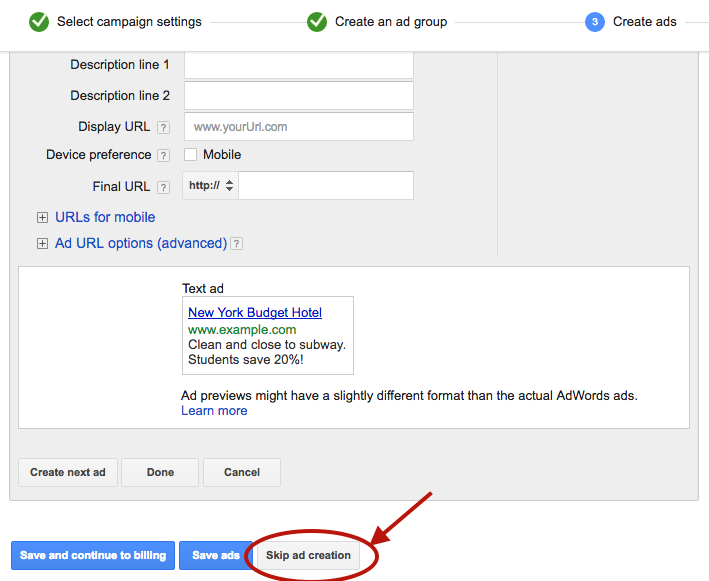
9. Save and Skip Ad Creation
Click "Save and continue." On the Ad Creation page, click "Skip ad creation." Gmail ads cannot be created in the standard ad builder, so you will need to use the Ad Gallery.
10. Open the Ad Gallery
Navigate to the "Ads" tab in your account, click the red "Ad" button, and select "Ad Gallery" from the dropdown menu.
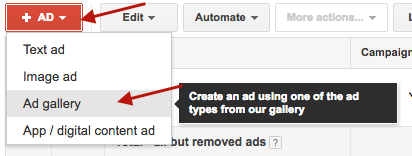
11. Select Gmail Ads
In the Ad Gallery, click "Gmail Ads" to access the Gmail-specific ad templates.

12. Choose a Gmail Ad Template
Select "Gmail image template" for the simplest and most effective format. Other template options are available, but the image template provides the best combination of visual impact and ease of setup.

13. Build Your Ad Creative
Fill in the template fields:
- Ad name: A descriptive internal label.
- Display URL: Your website domain as it will appear in the ad.
- Landing page: The destination URL where users will go after clicking. Make sure this page is relevant to the ad's offer and optimized for conversion.
- Logo: Your brand logo in the required dimensions.
- Advertiser: Your company name.
- Subject: This acts as the email subject line and is the first thing users see in their inbox. Treat it like an email subject: keep it compelling, concise, and benefit-driven.
- Description: A short preview text that appears alongside the subject line.
- Image: The hero image for the expanded ad. Use a clean, professional image that reinforces your value proposition.

14. Create Split-Test Variations
One of the strongest advantages of Gmail ads is the ability to split-test variations of every element. Create at least two to three versions with different subject lines, images, and descriptions. Test one variable at a time to isolate what drives performance.
15. Save and Launch
Click "Save" to finalize your ad. Your campaign is now live and will begin serving to Gmail users who match your targeting criteria.
Best Practices for Maximizing Gmail Ad Performance
Write Subject Lines Like an Email Marketer
Your Gmail ad appears alongside real emails. If your subject line reads like an advertisement, users will skip it. Study the subject line patterns that perform well in email marketing: curiosity-driven questions, specific numbers, and clear benefit statements all tend to outperform generic promotional copy.
Align Landing Pages to the Ad Offer
The expanded Gmail ad is only the first click. If users land on a generic homepage after clicking a specific offer, you will lose them. Create dedicated landing pages that match the messaging and offer in your Gmail ad. This alignment improves both conversion rates and Quality Score.
Scale by Adding More Competitor and Complement Targets
Once you validate that your initial targets are producing cost-efficient clicks and conversions, expand your campaign by adding new competitor and complement domains as separate ad groups. Each new domain you add opens up an entirely new audience segment.
Monitor and Adjust Bids by Ad Group
Performance will vary significantly across targets. A competitor with a large, engaged email list will generate more impressions and clicks than a smaller complement. Review performance at the ad group level weekly and adjust bids to allocate more budget toward your top-performing targets.
Integrate with Your Remarketing Strategy
Gmail ad clicks are top-of-funnel interactions. Most users will not convert on the first visit. Make sure your remarketing pixel fires on the landing page so you can follow up with Display, Search, and social remarketing ads that bring these users back to convert.
Why Most Advertisers Overlook Gmail Ads
Gmail ads do not generate the immediate volume of Search campaigns or the flashy creative opportunities of video and social ads. They are a surgical targeting tool that delivers incremental reach at a fraction of the cost. Because they require a different setup workflow and a targeting mindset rooted in competitive intelligence, most advertisers never bother.
That is exactly why they work. Low competition means lower CPCs, higher impression share, and the opportunity to reach your competitors' most engaged audiences before they even start searching for alternatives.
If you are looking for new growth channels that deliver qualified traffic without bidding wars, Gmail ads deserve a place in your paid media mix.

.webp)

.svg)


