






The "Not Found" error on your Instagram ads account can halt campaigns and leave you locked out of a critical advertising channel. Whether you are scaling spend or launching a new campaign, an inaccessible ad account means lost revenue and wasted time.
This guide walks through every common cause of the error, the exact steps to resolve it, and the preventive measures that keep your account in good standing long term.
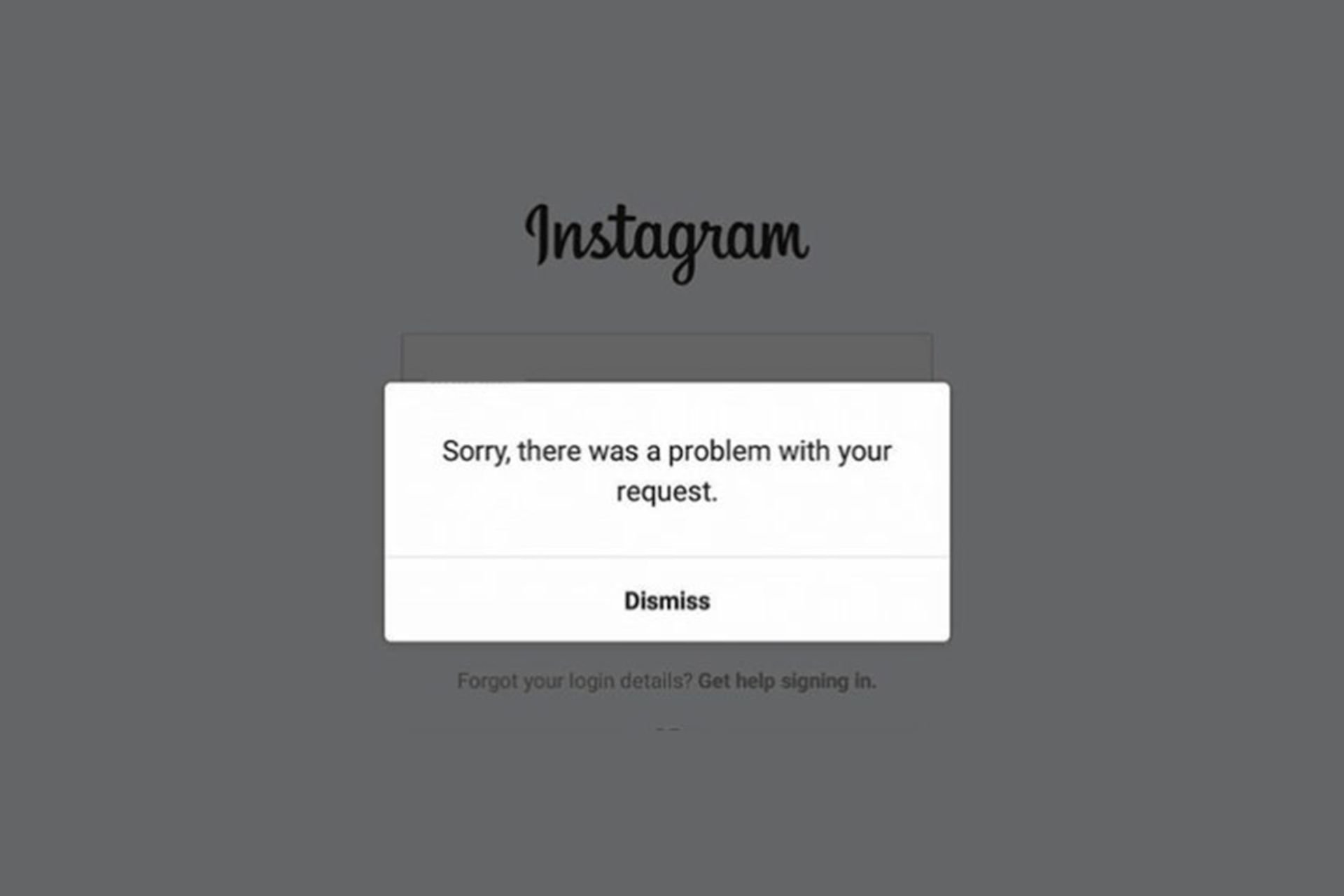
Why Your Instagram Ad Account Shows "Not Found"
Several factors can trigger the "Not Found" error. Identifying the root cause is the fastest path to a fix.
Misconfigured Account Settings
Incorrect or outdated account settings are one of the most common culprits. If the Facebook Business Manager that owns your Instagram ad account has had permissions changed, or if the Instagram account was disconnected from the linked Facebook Page, the ad account may become inaccessible.
Instagram Advertising Policy Violations
Instagram enforces strict advertising policies. Violations, even unintentional ones, can result in your ad account being disabled or suspended. Common violations include prohibited content, misleading claims, and targeting restrictions. If you are running ads on Facebook as well, review our guide on Facebook's ad policy to ensure compliance across both platforms.
Disabled or Suspended Ad Account
A disabled ad account is different from one that simply cannot be found. If your account has been flagged for suspicious activity, repeated policy violations, or billing issues, Instagram may disable it entirely. You will typically see a message such as "Your account is disabled for violation of advertising policies."
Technical Glitches and Server Issues
Temporary platform outages or bugs on Instagram's end can cause the error to appear intermittently. These issues usually resolve within hours, but it is important to rule them out before pursuing more involved troubleshooting.
Incorrect URL or Outdated App Version
An outdated Instagram app or an incorrect deep link can also produce the error. Instagram regularly releases updates that patch bugs and improve compatibility, so running an old version increases the likelihood of encountering unexpected errors.
Initial Troubleshooting Steps
Before escalating to Instagram support, work through these checks. They resolve the majority of "Not Found" cases.
Check Your Internet Connection
A slow or unstable connection can prevent the Instagram app or web interface from loading account data properly. Test your connection on another site or app first. If you are on mobile, try switching between Wi-Fi and cellular data.
Verify Your Instagram Ads Account Status
Log into Facebook Business Manager and navigate to your ad accounts. Confirm that the Instagram ad account is active, not restricted, and not pending review. Look for any notifications or alerts related to billing, policy, or access.
If you see restrictions, address them immediately. A billing issue left unresolved for even a few days can trigger an automatic suspension.
Confirm Account Permissions
Make sure you have the correct access level. If your role was changed from Admin to Advertiser, or if you were removed from the Business Manager entirely, the account will appear as "Not Found" from your perspective. Ask the account owner to verify your permissions.
Review Connected Instagram Account
In Business Manager, go to Business Settings and then Instagram Accounts. Confirm that the Instagram account is still connected and that the ad account has been assigned to it. A disconnected Instagram account is a frequent cause of this error, especially after organizational changes.
Advanced Troubleshooting Techniques
If the initial steps do not resolve the issue, these deeper fixes address more persistent problems.
Clear Cache and Cookies
Stored browser data can become corrupted and cause conflicts with the Instagram interface. Clear your cache and cookies, then try accessing your ad account again in a fresh browser session or incognito window.
Update Your Instagram App and Browser
Ensure you have the latest version of the Instagram app from the Apple App Store or Google Play Store. If you manage ads from a desktop browser, update Chrome, Firefox, or Safari to the latest release. Developers ship bug fixes and compatibility improvements in every update.
Test in a Different Browser or Device
If clearing cache does not help, try accessing your ad account from a completely different browser or device. This isolates whether the problem is device-specific or account-wide.
Understanding Common Error Messages
Different error messages point to different underlying issues. Here is what each one typically means.
"Ad account not found" - The account may have been deleted, you may lack permissions, or there is a temporary platform issue. Start with the permission and connection checks described above.
"Your account is disabled for violation of advertising policies" - A policy violation has been identified. Review Instagram's advertising guidelines, identify the offending ad or practice, and prepare to submit an appeal.
"Temporary issue, try again later" - This usually indicates a server-side problem. Wait 30 to 60 minutes and try again. If the message persists beyond a few hours, proceed to contact support.
"Ad account has no access to this Instagram account" - The ad account and Instagram account are not properly linked. Reassign the ad account in Business Manager under Instagram Accounts.
How to Contact Instagram Support
When self-service troubleshooting does not resolve the error, reaching out to Instagram support is the next step.
When to Escalate
Contact support after you have confirmed that your internet connection is stable, your app and browser are current, your permissions are correct, and the error has persisted for more than 24 hours. Having already completed basic troubleshooting demonstrates a genuine effort and can speed up the resolution process.
How to Reach Support
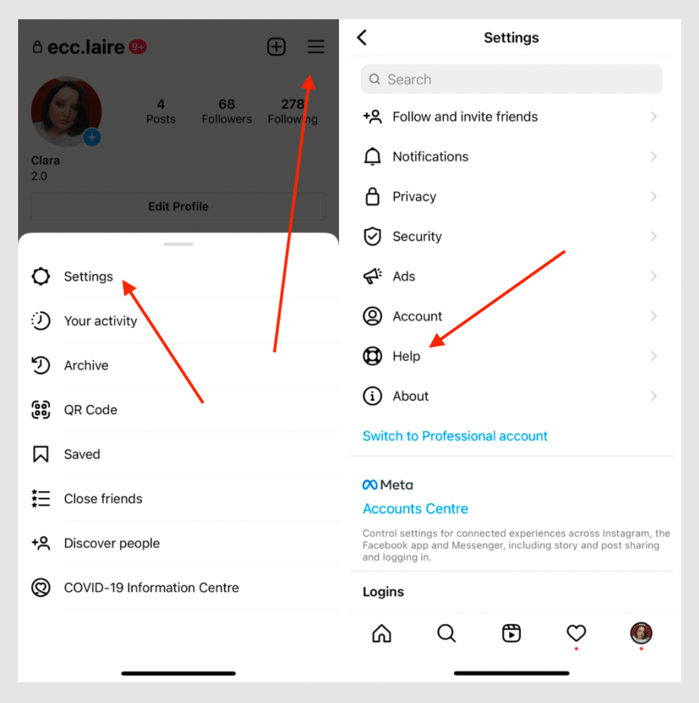
Navigate to the Instagram Help Center or use the "Report a Problem" feature inside the Instagram app. For ad-specific issues, the Meta Business Help Center often provides faster routing to a specialist.
What to Include in Your Support Request
Provide the following details to help the support team resolve your case quickly:
- Your ad account ID
- Your Instagram username and connected Facebook Page
- The exact error message you see
- Screenshots of the error
- A list of troubleshooting steps you have already taken
- Any recent changes to your account settings, billing, or team permissions
The more specific your request, the faster the resolution.
Navigating the Reinstatement Process
If your ad account has been disabled rather than simply encountering a temporary error, you will need to go through the reinstatement process.
Steps to Reclaim a Disabled Ad Account
- Submit an appeal through the Account Quality section in Facebook Business Manager or the Instagram Help Center.
- Provide supporting documentation. This may include proof of identity, proof of business ownership, or documentation that the flagged content was compliant.
- Wait for review. Reinstatement reviews can take anywhere from a few days to several weeks depending on the complexity of the case.
- Respond promptly to any follow-up requests from the support team. Delays in providing additional information can extend the timeline.
What to Expect
Each case is reviewed individually. Instagram evaluates the nature of the violation, your account history, and the documentation you provide. During the waiting period, review your ad content and ensure everything aligns with current platform policies so you are ready to relaunch as soon as access is restored.
If your first appeal is denied, you can submit a second appeal with additional context or documentation. Persistence and thoroughness improve your chances.
Preventing Future "Not Found" Errors
Proactive account management reduces the risk of encountering this error again.
Keep Your Account Information Current
Regularly update your billing details, contact email, and business verification documents. Outdated payment methods are one of the top reasons accounts get flagged or disabled.
Stay Compliant with Advertising Policies
Review Instagram's advertising policies at least quarterly. Policies change, and an ad format or targeting approach that was acceptable six months ago may no longer be compliant. If your Instagram ads strategy is not delivering, audit your creative and targeting against the latest guidelines before assuming a technical issue.
Monitor Account Health Regularly
Check your Account Quality dashboard in Business Manager at least once a week. Address any warnings or restrictions immediately rather than letting them escalate.
Keep Your App and Browser Updated
Enable automatic updates for the Instagram app and your preferred browser. Running outdated software is a preventable source of errors.
Maintain Proper Team Permissions
When team members leave or roles change, update Business Manager permissions immediately. Orphaned access and stale permissions create security risks and can trigger account access issues.
When to Bring In Expert Help
If troubleshooting on your own is consuming time you cannot afford, or if the reinstatement process stalls, consider working with a paid social agency that has experience navigating Meta's support channels. An experienced agency can often resolve account issues faster because they have established relationships with platform representatives.
For advertisers who also run campaigns on Facebook, make sure your ad accounts are aligned across both platforms. Issues on one can cascade to the other. Our guides on what to do if your Instagram ad was rejected and fixing Instagram ads that are not delivering cover adjacent issues that frequently co-occur with the "Not Found" error.
Bottom Line
The Instagram ad account "Not Found" error is disruptive, but it is almost always resolvable. Start with the basic checks: internet connection, account status, and permissions. Move to advanced troubleshooting if needed, and do not hesitate to contact Instagram support with a detailed, well-documented request. For disabled accounts, the reinstatement process requires patience and thorough documentation.
The best defense is prevention. Keep your account information current, stay compliant with platform policies, and monitor your account health consistently. A well-maintained ad account rarely encounters the "Not Found" error, and when it does, recovery is fast.

.webp)

.svg)


